Reference design
Agent-run vacant-property inspections: a ZenSched reference design
Apex dropped twenty occupancies at 6:12. Luis said he hit 4412 Elm before noon. The JPEG in the group chat is a curb. Safeguard rejected yesterday’s rear elevation three days later and you have nothing that is yours. The HOA lot on Maple never had a vendor order at all. What if an AI assistant could take that pasted list, put a GPS check-in on the inspector’s phone at that lot, collect a Field Report with exterior photos, and answer “did Luis hit Elm before noon” — without putting occupant names, lockbox codes, or loan numbers into a vendor cloud, and without pretending to upload to Safeguard?
This reference design shows how a solo vacant-property inspector, or a 2–8 inspector shop dispatching 1099s, can deploy an AI agent using ZenSched as the live schedule of record (with a Field Report on the phone) and a local SQLite database for clients, places, work orders, invoices, and sub payouts.
Honest framing: this is not Safeguard, MCS, or InspectorADE
Read this before you clone the kit.
- ZenSched is not a vendor portal. It does not log into Safeguard, MCS, ServiceLink, Cyprexx, or Altisource. It does not submit occupancy codes or photos. Nationals still pay on their packet in their app. You still upload there. This kit is your copy: GPS at the pin, a Field Report, and one internal schedule across those apps.
- It does not know HUD, FHA, GSE, or investor timelines. Due dates are dates you typed. The kit will not tell you a conveyance requirement was met.
- Optional burned-in photo stamp (opt-in per field). Set
"stamp_photos": trueon compliance photo fields in the kit’sform_create/form_updatepayload. After upload, the server burns readable date, time, and GPS onto the JPEG from capture metadata (default off). Each image also storescapture_lat/capture_lng,capture_ts, andcapture_sourceon the record. Gallery picks without EXIF may stamp date/time only. The GPS check-in punch is separate — whether the inspector was inside the geofence. You still upload to Safeguard/MCS in their app; this is your copy, not a portal substitute. - Occupant names and access codes stay on your computer. Names, lockbox codes, gate codes, and loan numbers live only in local SQLite. Location label is the street (
Property - Elm St). Event title is the vendor order number plus the street (WO 88217 - Elm St). The form header says not to write names or codes. - Double photography is real. A sub who already shoots Safeguard will not happily shoot a second set at 30 stops. GPS-only (~23 cents) is the honest agency configuration if they will not take a second photo set.
The kit’s SKILL.md makes that split a hard rule. Do not sell this as cheaper InspectorADE, and do not say it replaces the vendor app.
The problem: four apps and a texted JPEG
Field-service shops already have a stack: the vendor portal if nationals are the client; InspectorADE or Field Master Tech / Verisk PPW if they bought a work-order suite; otherwise a spreadsheet, a camera roll, and “done” in a text. The weekly loop is the same whether you drive the county yourself or dispatch five 1099s:
- Get every same-day drop onto one board — Safeguard next to MCS next to a realtor text.
- Know the sub actually stood on the lot. A refused check-in 800 m away is an answer. A JPEG is not.
- Keep a packet you control when the portal rejects a photo three days later.
- Invoice the work that never had a portal: direct REO, cash buyers, HOA vacant lots, “the realtor asked us to winterize Elm.”
- Pay 1099s from verified visits.
Not on that list: winning a national contract, or submitting to Safeguard.
The solution: split responsibility between ZenSched and local data
This architecture divides work cleanly:
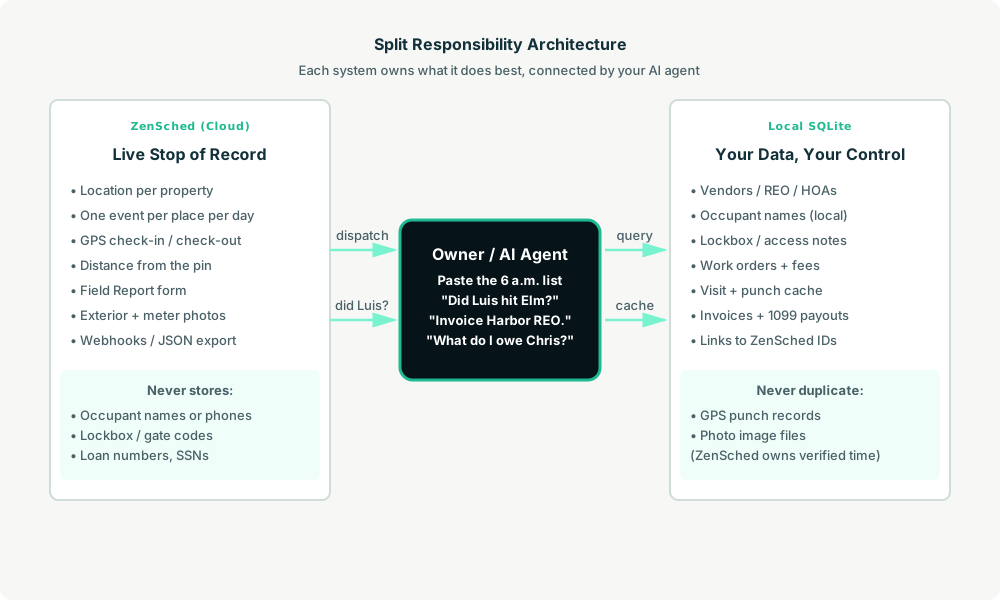
- ZenSched: Live property pin, GPS-verified check-in and check-out (geofence enforced), inspector app + push, one Field Report (occupancy, condition, issues, required exterior photos, optional meters, notes, inaccessible reason on the phone when occupancy is inaccessible). ZenSched never stores occupant names, lockbox codes, gate codes, or loan numbers.
- Local SQLite database: Clients and terms, places and access notes, work orders (vendor WO number, occupant contact local only), visit cache, invoices, 1099 payouts. Links to ZenSched location, event, and shift IDs. After one metered form read, punches and photo URLs are cached so “did Luis hit Elm” is free later.
The agent orchestrates both: it parses a pasted work-order list into local orders, creates a same-day event per place and a shift per visit, and writes verified arrival plus the report back into SQLite for the owner’s copy and for direct-work invoices. Nationals stay portal_billed.
Privacy: names and codes never cross
The street address has to go to ZenSched so the geofence works. The location label is the street (Property - Elm St). The event title is the vendor order number plus the street (WO 88217 - Elm St) — not a borrower name, not a loan number. Everything that identifies an occupant or opens a door stays in local work_orders / places.access_notes. If you ask the agent to put a name or a lockbox code in a ZenSched field — including cancellation reasons subs can see — it should refuse.
show_if follow-ups work on the phone: “Why inaccessible” stays hidden until the inspector marks occupancy inaccessible. There is no web worker UI.
Do not photograph people or interiors of occupied homes.
Day-to-day workflow
A typical occupancy day looks like this:
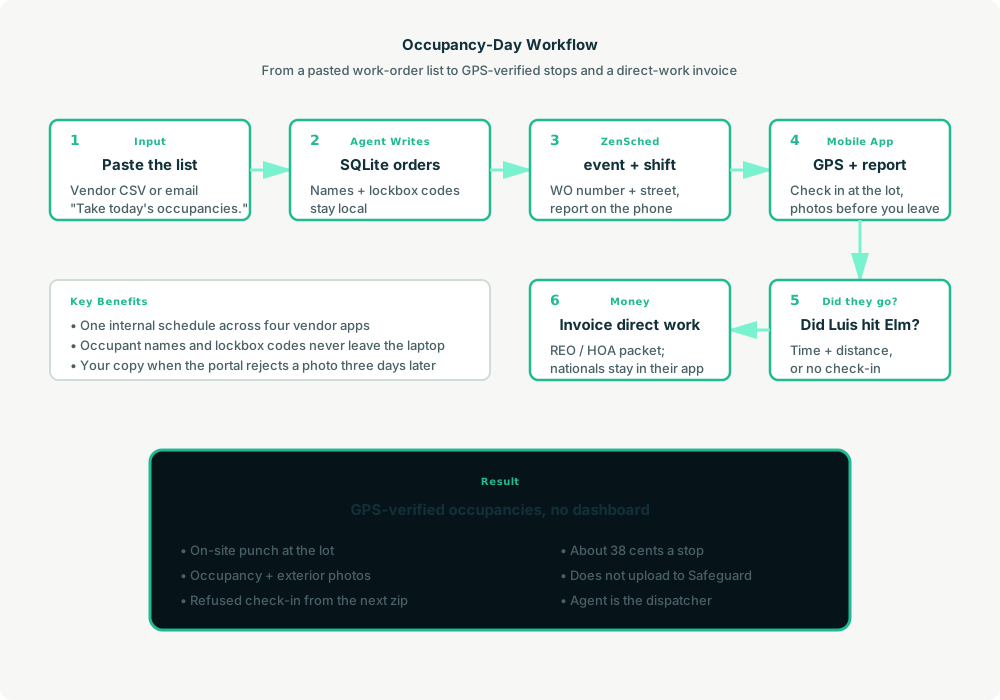
- You to agent (plain English): Paste the 6 a.m. vendor dump or a realtor text. “Take today’s occupancies.”
- Agent writes SQLite: Upserts clients and places, keeps occupant names and lockbox codes local, opens work orders and visit rows.
- Agent creates the windows on ZenSched: One
location_createif the address is new, one same-day event titledWO 88217 - Elm St,form_assignfor the Field Report, oneshift_create. A late add is “add Morse Rd for Luis now” — still a shift, then he punches. The inspector gets a push. - The inspector does the work: Open the ZenSched app, GPS check-in at the lot, walk the exterior, fill the Field Report (occupancy, condition, issues, photos), check out. Then, for nationals, they still open the vendor app.
- Did they go?: “Did Luis hit Elm before noon?” Agent pulls punches (free) and the report (metered once) — time, distance, vacant, photo count — or “no check-in.”
- Money: “Invoice Harbor REO for the four direct stops.” “What do I owe Chris?” Plain-text invoice for direct work. Nationals you still bill however you bill them today.
No dashboards. No asking you to run SQL. Paste the list, then talk to the agent.
Field Report on the phone
Here’s what the report looks like on a real shift. The inspector opens the ZenSched mobile app (iOS App Store | Google Play), checks in at the property, then fills the form before they drive off.
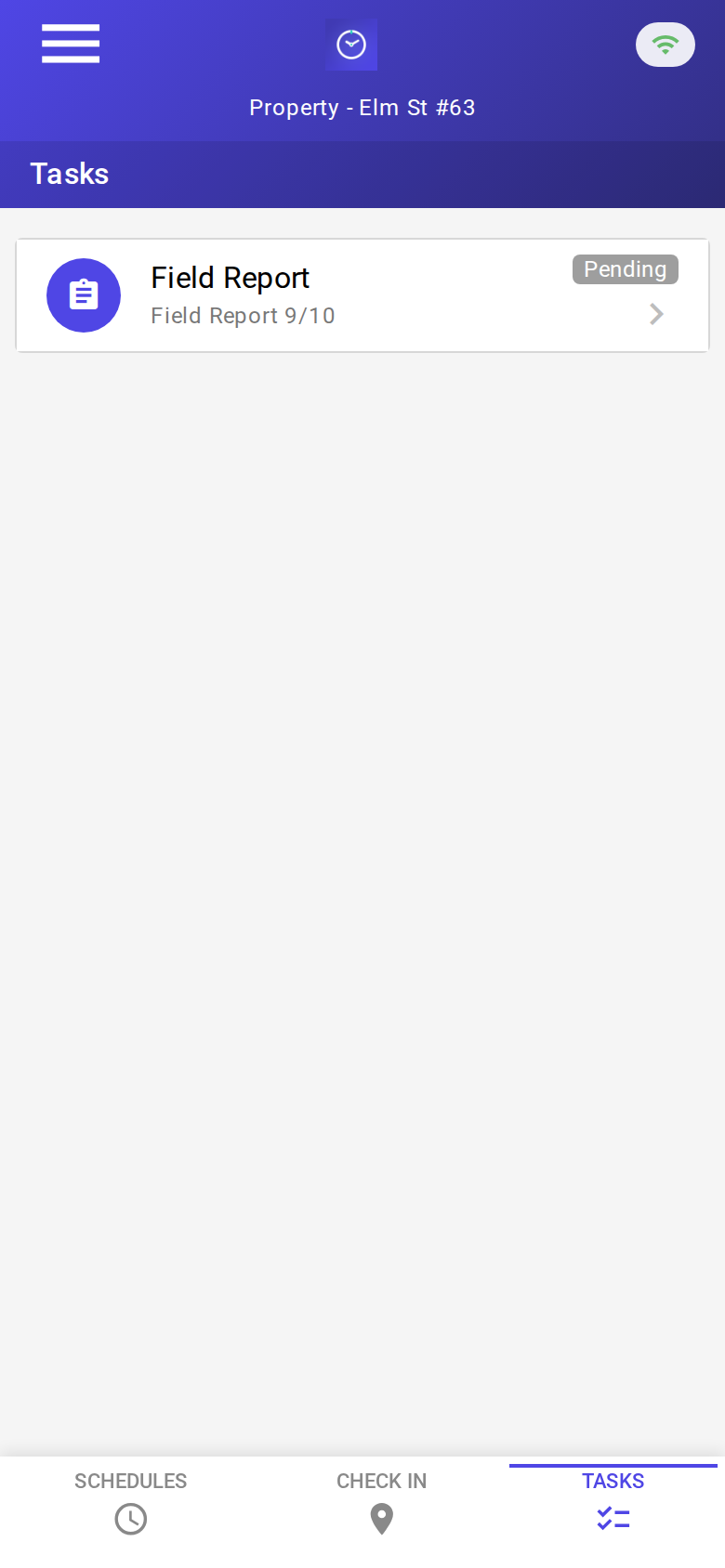
The Tasks tab with a pending Field Report. Check-in is GPS-verified at the lot before the form is the work.
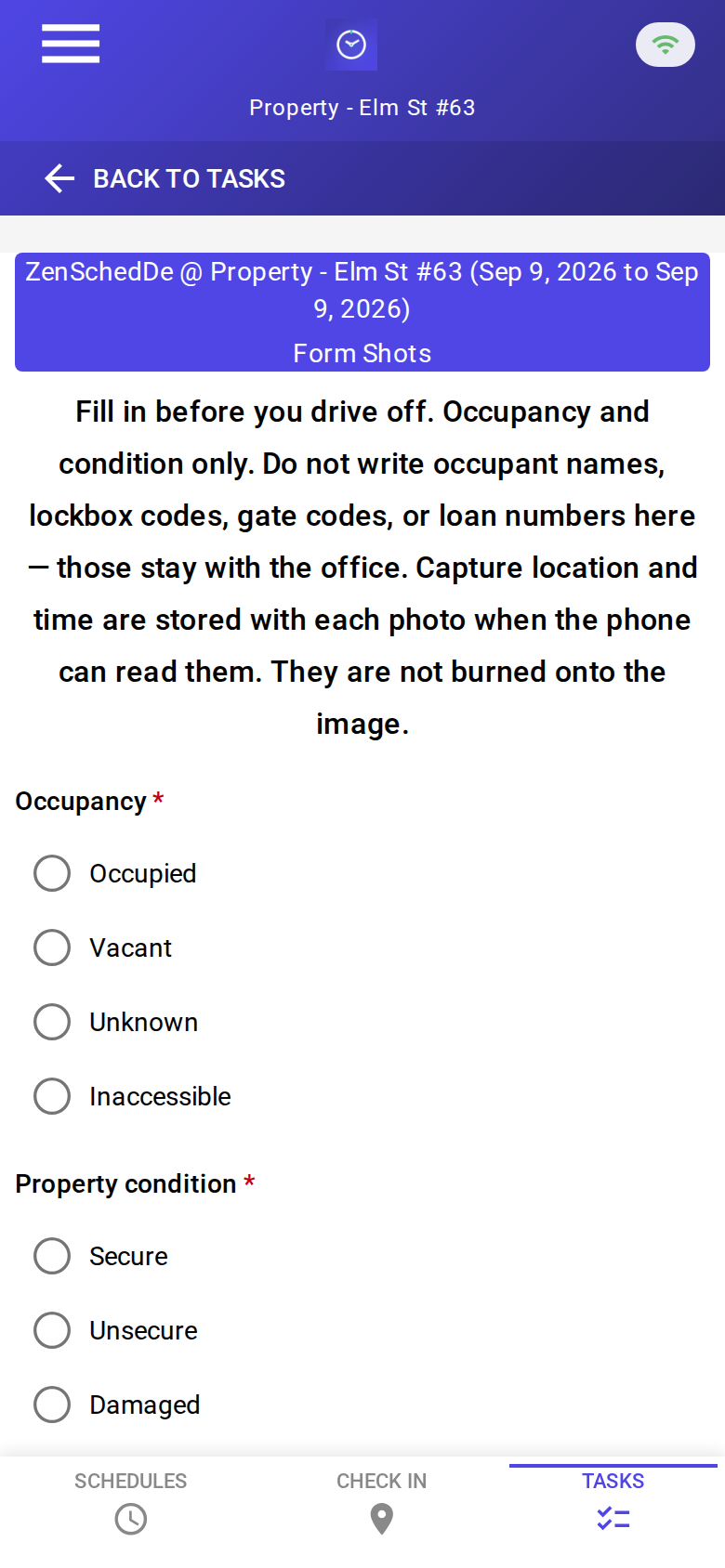
The blank report: occupancy, condition, issues, exterior photos, meters. The header says not to write occupant names, lockbox codes, gate codes, or loan numbers. Compliance photo fields in the kit set "stamp_photos": true so exported JPEGs carry readable date, time, and GPS. No signature pad.

A completed occupancy: vacant, secure, lawn overgrown, exterior photo attached. About 38 cents with GPS in, GPS out, and the photo read.
Setup summary
Getting started takes about 15 minutes:
- Install an MCP client: Claude Desktop, Cursor, or Muse Code.
- Connect ZenSched MCP: Add
https://mcp.zensched.com/mcpto your MCP config. Muse uses a different file shape — see the Muse snippet in the quickstart. - Connect easy-sqlite-mcp: Point
SQLITE_PATHat a localpreservation-ops.dbon an encrypted, backed-up folder (this file holds occupant names and lockbox codes — treat it like a key box). - Paste the reference skill: The zensched-property-preservation-kit includes
SKILL.md,schema.sql, and a quickstart. Load the schema once (one statement per execute). - Create your ZenSched account: Call
zensched_guide, thenaccount_createfor azsc_key (no email required). Invite yourself as a worker in solo mode — you are who checks in. 1099s get their own invite. - Fund when needed: Free tools under daily quota; metered GPS, geocode, worker invites, and form reads draw from prepaid balance. The $5 activation deposit is credited to your account.
Rural lots and gated communities need a second brand and policy with a wider radius (150–250 m). Do not flip remote_checkin on the default org-wide policy — that turns GPS proof off for every metro stop too.
Worker app: Android on Google Play and iOS on the App Store.
For step-by-step details, see the ZenSched quickstart and the property-preservation kit.
Metering: what you pay for
ZenSched uses transparent per-action pricing (see pricing):
- Free MCP calls under daily quota for basic operations
- GPS check-in/check-out: $0.10 each (metered verification)
- Address geocoding: $0.03 per new property (once; a repeat vacant reuses the pin)
- Worker invite: $0.25 per inspector (once), including yourself
- Form submission reads: $0.05 basic / $0.15 with photos — read once, cache locally. The photo meter is per submission, not per image. Exterior photos are required, so plan on $0.15.
Worked example from the vertical pitch: about $0.38 a stop (GPS in + GPS out + photo Field Report + a new-address geocode). Four hundred inspections a month is $152. A repeat vacant drops the geocode and lands near $0.35. GPS-only — they already shot the vendor-app set — is $0.23. On a $25 occupancy that is 1.5%.
Read the incumbent comparison honestly. Field Master Tech’s first five users are $125. At 400 photo inspections ZenSched is more expensive ($152) and does not do work orders or bidding. Verisk PPW’s floor is $199. InspectorADE is quote-only; one write-up alleged about $0.32/order — treat that as unverified and do not put “cheaper than InspectorADE” on a slide. Price is not the agency sell. Sell enforced GPS the owner can query in English, one schedule across vendor apps, and a first-class packet for direct REO / HOA work. If they only work nationals and already live in InspectorADE, do not sell a replacement.
What you get
- Geofenced check-in and check-out at the lot, with distance from the pin
- A Field Report on the phone: occupancy, condition, issues, exterior photos, meters
- “Did Luis hit Elm before noon” from the agent
- Your own copy when the portal rejects a photo
- Direct-work invoices and 1099 payouts on the laptop from verified visits
- About 15 minutes to stand up; the agent is the dispatcher
What you don’t get (be blunt)
- No Safeguard / MCS / ServiceLink upload
- No HUD / FHA / GSE rules engine
- Photo stamp is opt-in (
"stamp_photos": trueon photo fields at form setup; gallery picks without EXIF may show date/time only) - Occupant names and lockbox codes are not stored on ZenSched — you still tell the inspector how to get in
- No bid estimating, Equator, Pruvan, or InspectorADE bridge
remote_checkinis a last resort and turns GPS proof off for the whole policy
Who this is for (and who it’s not for)
Ideal for:
- Shops that also invoice direct servicer / REO / HOA vacant work
- Owners who need proof a 1099 actually stood on the lot
- Operators drowning in four vendor apps who want one internal schedule
- Operators who already talk to Claude, Cursor, or Muse and want a pasted CSV to become phone shifts
Not a replacement for:
- The vendor app you must use to get paid by a national
- InspectorADE / FMT / PPW when the product is portal-shaped data entry and bidding
- A prime’s work-order system
This is agent-first infrastructure. The operator talks to the agent, and the agent talks to ZenSched.
Get started
- Kit: github.com/zenschedmcp/zensched-property-preservation-kit
- Docs: zensched.com/docs/quickstart
- MCP:
https://mcp.zensched.com/mcp - Related: Agent-run lawn care · Agent-run pet care · Agent-run home care · Agent-run mobile notary · Agent-run process serving · Agent-run mystery shopping · Agent-run STR turnover · Agent-run tenant inventory
Ready to build your own workflow?
Clone the reference kit and connect ZenSched to your AI agent.